
Microsoft Entra Application Registration for Monitoring
Step-by-Step Administrator Guide
Microsoft Entra does not allow third-party software - including ActiveXperts - to access directory information anonymously or by simply providing a username and password. Instead, the external monitoring application must first identify itself to Entra and be granted explicit permissions.
Before monitoring software can access information from Microsoft Entra, an Application Registration must be created. This tells Entra that you trust the monitoring software and allows it to connect securely.
For security reasons, we recommend using certificate-based authentication. In this model, a certificate is uploaded to the Application Registration, and the ActiveXperts Network Monitor software uses the matching private key to authenticate itself.
Step 1 - Install Microsoft Graph Powershell module
The Microsoft Graph PowerShell module must be installed on the monitoring server where ActiveXperts Network Monitor is running. To do this, open a new PowerShell command prompt with Administrator privileges on the monitoring server and run the following command:
Install-Module Microsoft.Graph -Scope AllUsers
Using '-Scope AllUsers' installs the Microsoft Graph PowerShell module for all users on the server. This is important because ActiveXperts Network Monitor software typically runs under a Windows service account, which is usually different from the user account that is currently logged on.
Step 2: Sign in to Microsoft Entra
- Open a web browser.
- Go to https://entra.microsoft.com
- Sign in with an administrator account.
Store the Tenant ID. You will need this value later when configuring ActiveXperts, as it is one of the three required parameters used for authentication: Tenant ID, Client ID (Application ID), Certificate Thumbprint
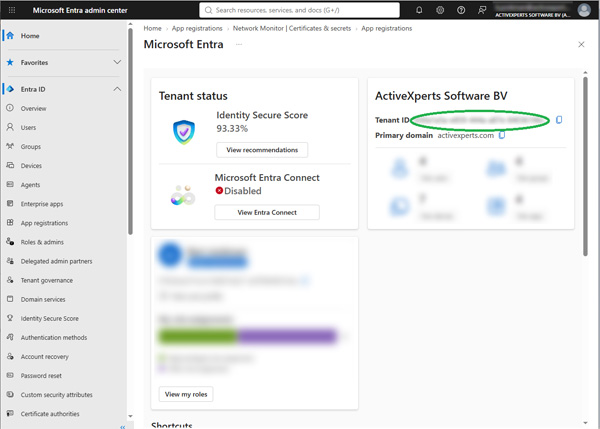
Step 3: Create an Application Registration
- In the left menu, select: Applications → App registrations
- Click: New registration
- Enter a name, e.g.: 'ActiveXperts Network Monitor'
- In supported account types, leave it to: Single tenant only; leave Redirect URI empty.
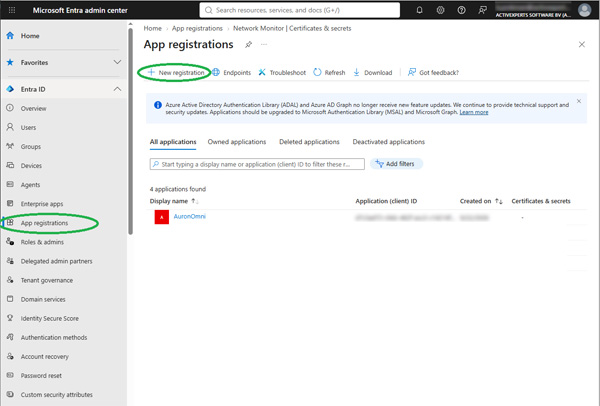
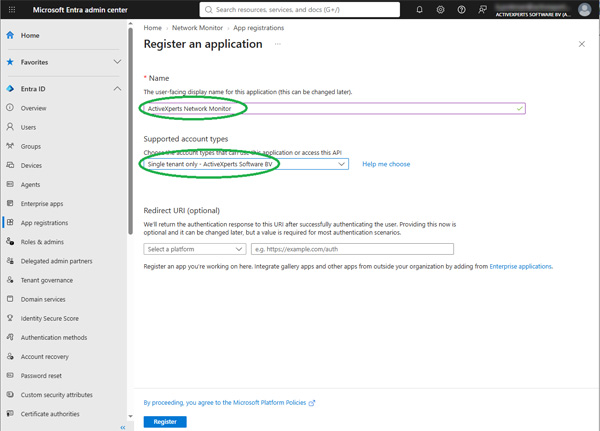
Step 4: Store the Application (Client ID)
Store the Client ID (Application ID). You will need this value later when configuring ActiveXperts, as it is one of the three required parameters used for authentication: Tenant ID, Client ID (Application ID), Certificate Thumbprint
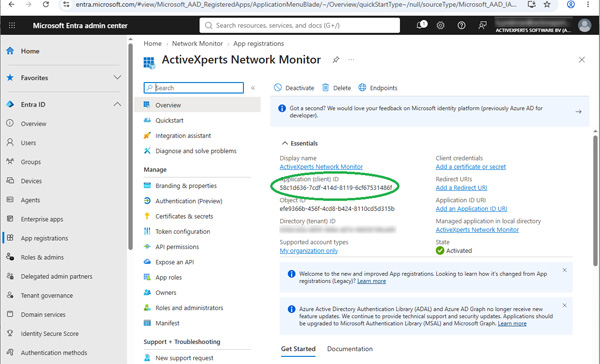
Step 5: Create a Certificate on the monitoring machine
Next, create a new certificate on the server where ActiveXperts is installed and running. This certificate will be used to authenticate to Microsoft Entra ID without requiring a username and password.
To do this, open a PowerShell window on the monitoring server with Administrator privileges.
Running PowerShell as an administrator is required because the certificate will typically be created and stored in the Local Computer certificate store.
Type the following command (replace MYAXSERVER by the name of the monitoring ActiveXperts server):
$cert = New-SelfSignedCertificate `
-Subject "CN=MYAXSERVER" `
-KeySpec Signature `
-KeyExportPolicy Exportable
Step 6: Store the Certificate Thumbprint
After creating the certificate, display its thumbprint by running the following command:
$cert.Thumbprint
Store this Certificate Thumbprint. You will need this value later when configuring ActiveXperts, as it is one of the three required parameters used for authentication: Tenant ID, Client ID (Application ID), Certificate Thumbprint
Step 7: Export the certificate to a file
On the monitoring ActiveXperts server, export the certificate to a file using Powershell:
Export-Certificate `
-Cert $cert `
-FilePath C:\Temp\MYAXSERVER.cer
Step 8: Upload Certificate
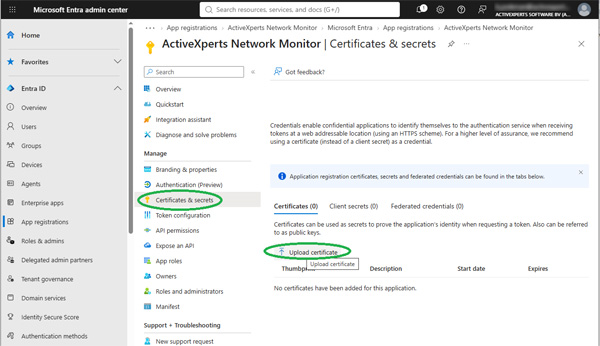
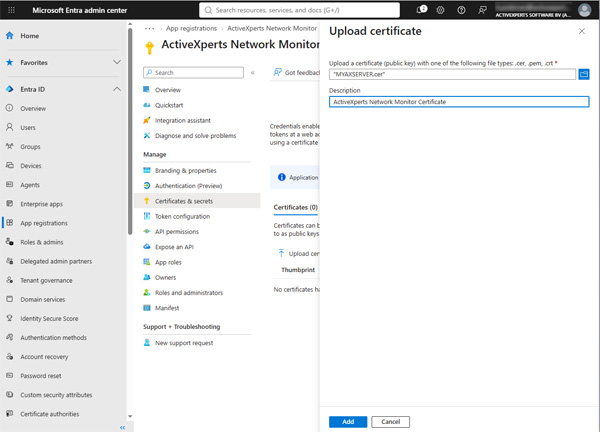
In the browser, navigate to your registered Application. Click on Certificates & Secrets, and click on Upload Certificate
Upload the .CER file created in the previous step.
Step 8: Set API permissions
In de registered Application, click on API permissions in the context menu, and set the following API permissions for Microsoft Graph:
- AuditLog.Read.All
- Group.Read.All
- User.Read
- User.Read.All
IMPORTANT: After assigning the required API permissions, do not forget to click Grant admin consent.
If this step is skipped, the application may be able to authenticate successfully, but it will not have permission to access the requested Microsoft Entra data.
As a result, ActiveXperts is likely to return the following error message: Insufficient privileges to complete the operation.