
Visual Basic FTP Client Sample Source Code
Network Component provides an easy-to-use development interface to a variety of IP protocols. By using Network Component, you can very easily create or enhance applications with network features.
Network Component features the following: DNS, FTP, HTTP, HTTPs, ICMP Ping, IP-to-Country, MSN, NTP, RSH, SCP, SFTP, SNMP v1/v2c (Get, GetNext, Set), SNMP Traps, SNMP MIB, SSH, TCP, Telnet, TFTP, UDP, Telnet, Wake-On-LAN and more.
Network Component can be well integrated into any development platform that supports ActiveX objects.
This document describes how the Network Component FtpServer object can be integrated into your projects.
The most important functions of the FtpServer object are:
- Connect - connect to the (remote) FTP server on port 21 or any alternate port;
- Disconnect - to diconnect after a connect call;
- GetCurrentDir - retrieve the current directory;
- ChangeDir - change the current directory;
- CreateDir - create a new directory;
- RenameDir - rename a directory;
- DeleteDir - delete a directory;
- FindFile - find a specific file in the current directory;
- FindFirstFile - iterate over all files in the current directory; find the first file;
- FindNextFile - iterate over all files in the current directory; find the next file;
- RenameFile - rename a file in the current directory;
- DeleteFile - delete a file in the current directory;
- GetFile - get (download) a file, either using binary transfer or ASCII transfer;
- PutFile - put (upload) a file, either using binary transfer or ASCII transfer;
Step 1: Download and install the Network Component
Download Network Component from the ActiveXperts Download Site and start the installation. The installation guides you through the installation process.
Step 2: Create a new Visual Basic project
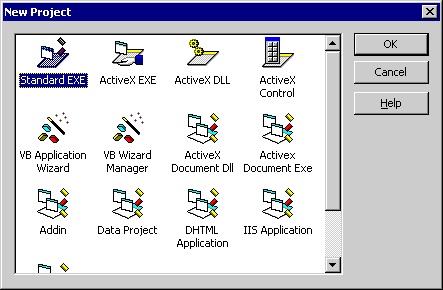
Launch 'Microsoft Visual Basic' from the Start menu, and choose 'New' from the 'File Menu'. The 'New Project' dialog appears.
Select 'Standard Exe' and click 'OK':
(Click on the picture to enlarge)
Step 3: Refer to the Network Component Library and create the objects
A new Project is created, with a blank form.
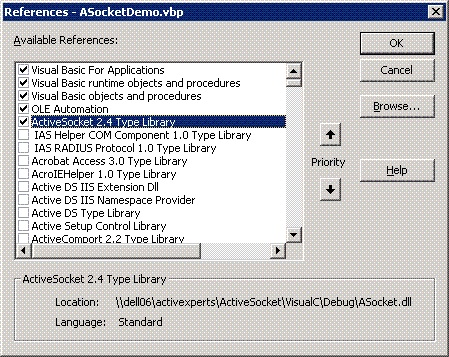
First, you must add a reference to Network Component in the project to be able to use the object. To do so, choose 'References...' from the 'Project' menu. In the 'References' dialog that pops up, enable the 'Network Component 3.1 Type Library' reference as shown in the following picture:
(Click on the picture to enlarge)
Click 'OK' to close the 'References...' dialog.
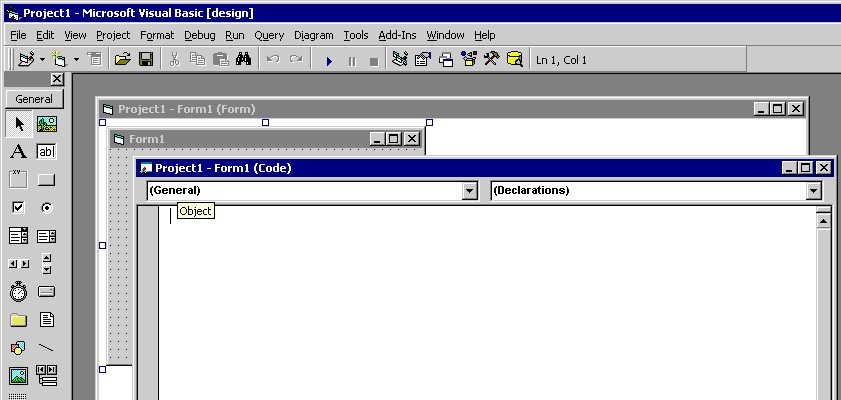
Then, select the Project form and choose 'View Code' from the context menu:
(Click on the picture to enlarge)
On top of your code, declare the following object:
Public objFtpServer As AxNetwork.FtpServer
Step 4: Create the object
From the Code window, select 'Form'. The Private Sub 'Form_Load()' will be displayed now. In the 'Form Load' function, create the object in the following way:
Set objFtpServer = CreateObject("AxNetwork.FtpServer")
Appendix: Full source code
Private bConnected As Boolean

Public objFtp As AxNetwork.FtpServer

Private Declare Function GetTempPath Lib "kernel32" Alias "GetTempPathA" (ByVal nBufferLength As Long, ByVal lpBuffer As String) As Long
Private Const MAX_PATH = 260

'///////////////////////////////////////////////////////////////////////

Private Sub Form_Load()
  Set objFtp = CreateObject("AxNetwork.FtpServer")

  SetDefaultLogFile

  bConnected = False

  EnableControls
End Sub

'///////////////////////////////////////////////////////////////////////

Private Sub btnConnect_Click()
  objFtp.LogFile = txtLogfile.Text
  objFtp.HostPort = CInt(txtPort.Text)

  objFtp.Connect txtHost.Text, txtUsername.Text, txtPassword.Text

  If (GetResult() = 0) Then
    bConnected = True
    EnableControls
    RefreshDir
  End If
End Sub

'///////////////////////////////////////////////////////////////////////

Private Sub btnDelete_Click()
  If (lsFiles.SelectedItem.Text <> "<DIR>") Then
      objFtp.DeleteFile (lsFiles.SelectedItem.Text)

    If (GetResult() = 0) Then
      RefreshDir
    End If
  End If
End Sub

'///////////////////////////////////////////////////////////////////////

Private Sub btnDisconnect_Click()
  objFtp.Disconnect

  bConnected = False
  lsFiles.ListItems.Clear
  EnableControls
End Sub

'///////////////////////////////////////////////////////////////////////

Private Sub btnGet_Click()
  If (lsFiles.SelectedItem.SubItems(1) <> "<DIR>") Then

    dlgOpenFile.FileName = lsFiles.SelectedItem.Text
    dlgOpenFile.ShowSave

    objFtp.GetFile lsFiles.SelectedItem.Text, dlgOpenFile.FileName

    If (GetResult() = 0) Then
      RefreshDir
    End If
  End If
End Sub

'///////////////////////////////////////////////////////////////////////

Private Sub btnPut_Click()
  dlgOpenFile.ShowOpen

  objFtp.PutFile (dlgOpenFile.FileName)

  If (GetResult() = 0) Then
    RefreshDir
  End If
End Sub

'///////////////////////////////////////////////////////////////////////

Private Sub btnRefresh_Click()
  RefreshDir
End Sub

'///////////////////////////////////////////////////////////////////////

Private Function GetResult() As Long
  Dim lResult As Long

  lResult = objFtp.LastError
  txtResult.Text = lResult & ": " & objFtp.GetErrorDescription(lResult)
  GetResult = lResult
End Function

'///////////////////////////////////////////////////////////////////////

Private Sub btnView_Click()
  If FileExists(txtLogfile.Text) = True Then
      Shell "notepad " + txtLogfile.Text, vbNormalFocus
  End If
End Sub

'///////////////////////////////////////////////////////////////////////

Public Function FileExists(sFileName As String) As Boolean
  FileExists = CBool(Len(Dir$(sFileName))) And CBool(Len(sFileName))
End Function

'///////////////////////////////////////////////////////////////////////

Private Sub EnableControls()
  txtHost.Enabled = Not bConnected
  txtPort.Enabled = Not bConnected
  btnConnect.Enabled = Not bConnected
  txtUsername.Enabled = Not bConnected
  txtPassword.Enabled = Not bConnected
  btnDisconnect.Enabled = bConnected
  btnRefresh.Enabled = bConnected
  btnGet.Enabled = bConnected
  btnPut.Enabled = bConnected
  btnDelete.Enabled = bConnected
  lsFiles.Enabled = bConnected
End Sub

'///////////////////////////////////////////////////////////////////////

Private Sub RefreshDir()

  Dim lList As ListItem

  lsFiles.ListItems.Clear

  Set lList = lsFiles.ListItems.Add(, , "..")

  lList.SubItems(1) = "<DIR>"

  Dim objFile As FtpFile

  Set objFile = objFtp.FindFirstFile

  While (objFtp.LastError = 0)
    Set lList = lsFiles.ListItems.Add(, , objFile.Name)

    If (objFile.IsDirectory) Then
        lList.SubItems(1) = "<DIR>"
    Else
        lList.SubItems(1) = objFile.Size
    End If

    lList.SubItems(2) = objFile.Date

    Set objFile = objFtp.FindNextFile
  Wend
End Sub

'///////////////////////////////////////////////////////////////////////

Private Sub lsFiles_DblClick()
  If (lsFiles.SelectedItem.SubItems(1) = "<sDIR>") Then
    objFtp.ChangeDir (lsFiles.SelectedItem.Text)

    If (GetResult() = 0) Then
      RefreshDir
    End If
  End If
End Sub

'///////////////////////////////////////////////////////////////////////

Private Function SetDefaultLogFile()

  Dim Buffer As String
  Buffer = Space(MAX_PATH)

  If GetTempPath(MAX_PATH, Buffer) <> 0 Then
      txtLogfile.Text = Left$(Buffer, InStr(Buffer, vbNullChar) - 1) & "Ftp.log"
  Else
      TextLogFile.Text = "C:\Ftp.log"
  End If
End Function

'///////////////////////////////////////////////////////////////////////
You can download the complete samples here. There are many other working Network Component scripts on our site and shipped with the product.
NOTE: Demo Projects are created with Microsoft Visual Studio 2008
The Network Component project ships with a set of Microsoft Visual Studio .NET samples, including samples for Microsoft Visual C# .NET. The projects are created with Microsoft Visual Studio 2008.
Users with a later version of Microsoft Visual Studio can open such a project. The Visual Studio Conversion Wizard will guide you through the process of converting the project to the version used.